![requisis2011.png]](https://hub.requisis.com/hs-fs/hubfs/requisis2011.png?height=49&name=requisis2011.png)
For this guide, you need a user with admin rights to use the Administration toolbox. To do this, the user of the group stored in the auth.ldap.admin.dn parameter must be in the authentication system used.
The parameter settings shown here should only be used for the required period of time, as the log files generated will be significantly larger than usual.
This guide explains how to document communication problems between the ReqIF-Manager and the DNG Server. You will generate log files with debug information and share them with product support. Before you can start reproducing the error, you need to make a few settings.
If you are experiencing an error with a job (import or export), you can find the corresponding guide here.
Configuration of the debug mode
- Open the Parameters tab in the Administration toolbox and click on the
 icon to be able to edit the parameters auth.ldap.debug, logger.dng_communication_log.log_always and logger.level.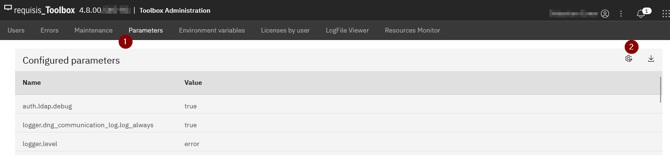
- The three parameters can be changed here in the GUI and are then immediately active after clicking on
 without restarting the container. If you do not want to make any changes, click on the
  icon to exit edit mode without making any changes.
auth.ldap.debug
If the value is set to true, the LDAP debug mode and the requisis_toolbox_login.log are activated for more detailed error messages. This is required when analyzing problems with the login.
Default value: false/unchecked
logger.dng_communication_log.log_always
If the value is set to true, the writing of the reqif.mix.log is activated outside of jobs. This is required for the analysis of problems when adding modules, synchronizing modules / components etc.
Default value: false/unchecked
logger.level
Log level for logging. Defines when an event is documented in the corresponding log. Unless otherwise specified, set this parameter to the value debug. Possible values are: debug, error, warning, critical, info
Default value: error
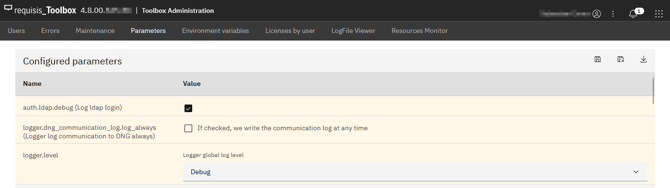
- In edit mode, the three parameters are highlighted in color. After you have made and saved the corresponding adjustments, switch to the LogFile Viewer tab.
Preparing the error reproduction
Debug mode is now configured. Next, the currently existing log file is removed so that it only contains data that was generated with debug mode for analysis later.
- To do this, switch to the LogFile Viewer by clicking on the corresponding tab in the administration.
- You can view the log files on the running container in the LogFile Viewer. To do this, open the contents of the
app/var/logsfolder on the right-hand side of the screen, and the list of log files will become visible.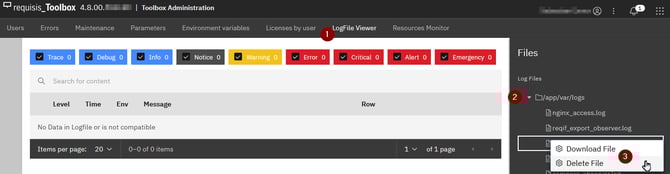
- Click on the log that you have configured in debug mode.
requisis_toolbox_login.log for login problems
reqif.mix.log for communication problems with the DNG server - The entries it contains are irrelevant for the subsequent error analysis. Right-click on the log file to open the context menu and select Delete File to delete the file.
Don't worry, if the system detects that a certain log file is missing in which an entry should now be written, this file is automatically recreated.
Error reproduction and data provision
All preparations have now been completed. Reproduce your error case and send us the generated log.
In the event of login problems, it can help if the user concerned uses an incognito window in their browser.
In the event of communication problems, make sure that the users involved have the appropriate access rights in DNG and to the ReqIF set used. Read chapters 1.2, 1.3 and 2.4 in the user manual.
- You or the affected user can now reproduce the error case.
- In the LogFile Viewer you will now find the corresponding log with the entries just created.
requisis_toolbox_login.log in case of login problems
reqif.mix.log in case of communication problems with the DNG server - Optional: If you would like to take a look at the log for the sake of interest, simply click on the relevant log. You can use the filter options and the search function to quickly find the relevant entries.
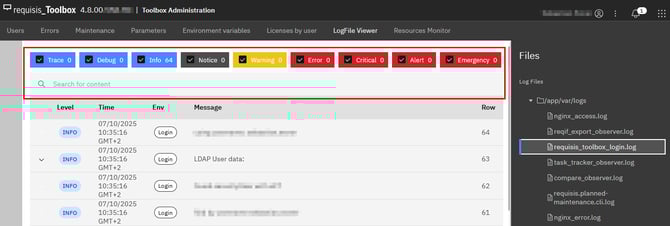
The last/most recent entry is displayed at the top of the LogFile Viewer.
Some logs cannot be displayed here due to their format.
- To download the log files, right-click on the relevant log and select the Download File option in the context menu. Compress the log file with a ZIP tool.
- Reset the parameters that you changed in the chapter Configuration of the debug mode section to their default values.
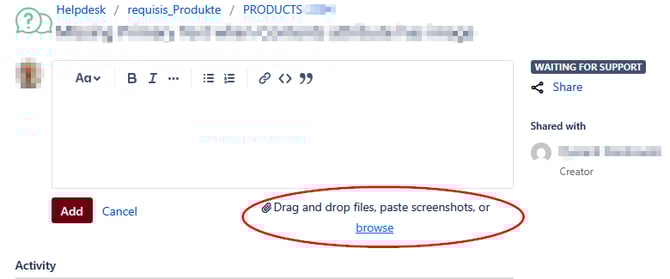
- Finally, add this file to the appropriate ticket at requisis_Product Support. If not already mentioned, also the step-by-step instructions for reproducing the error. As well as the versions of the requisis_Toolbox and DNG used, including iFix.